Instagram Edits App Export Settings: 2K or HD, Which Frame Rate, and Fixes When Edits Won't Export
- Best default: 2K (1440x2560) at 30 fps, posted with Share to Instagram; Tom Bender, who launched Edits, says your IG audience won't see a difference at 4K.
- HD (1080x1920) is the right fallback on a heavy project or older phone; 4K is for an archive master, not the post.
- For color, Bender's own reply for full quality is HDR, though he calls it a creative choice; Instagram converts to SDR for viewers who turn HDR off.
- Not exporting or stuck on HD: Meta publishes no fix page, so drop a preset, free storage, update both apps, and turn on Upload at highest quality in Instagram.
Updated 23 Oct 2026: re-checked every Edits Help Center page, both app store listings and Tom Bender's Threads tips; added a decision table, a troubleshooting section for "not exporting" and "limited to HD", the Save-draft path, and corrected our HDR advice (Bender's own answer for full quality is HDR, not off).
The best Instagram Edits app export settings for Reels are 2K (1440x2560) at 30 fps, shared with the Share to Instagram button. 2K is the recommendation of Tom Bender, whose Threads profile says he launched the Edits app, on Threads in May 2025: "I recommend filming and exporting at 2K." He calls 30 fps "the default for most videos". HD (1080x1920) is fine if your phone or project struggles; 4K is for an archive copy, not for posting. If Edits is not exporting or only shows HD, skip to the troubleshooting table below.
Where the setting lives: Instagram's Help Center says "go to your project and tap the resolution in the top right. You can select the resolution, frame rate and color" (Download and share your video from Edits). The same three choices appear on the camera before you record.
| Your situation | Resolution | Frame rate | Color | How to post |
|---|---|---|---|---|
| Standard reel: talking head, tutorial, demo | 2K | 30 | HDR if shot in HDR, else SDR (our read) | Share to Instagram |
| Cinematic or "aesthetic" reel | 2K | 24 | HDR or SDR (creative choice) | Share to Instagram |
| Fast motion: sport, gaming, hands-on process | 2K | 60 | Either | Share to Instagram |
| Reel with clickable links to other reels or accounts | 2K | Any | Either | Must use Share to Instagram |
| Older phone, long project, or 2K export keeps failing (our read) | HD (1080x1920) | 30 | SDR (our read) | Share to Instagram |
| Same video for TikTok, Shorts or a client | 2K or HD | 30 | SDR (our read) | Download (watermark-free) |
| Master you will re-cut or archive | 4K | As shot | As shot | Download, keep on device |
What are the best export settings for the Instagram Edits app?
Edits gives you three controls, and Instagram's Record a video with Edits page lists them: "Change the resolution of your video between HD, 2K and 4K. You can also change the frame rate and color." Bender's thread fills in the values: 24, 30 and 60 fps, and SDR or HDR for color.
His four tips, in short:
- Resolution: 2K. "You can use 4K if you want a super sharp archive, but your IG audience won't see a difference, and it will be slower to edit."
- Frame rate: a look, not a quality dial. "24 is the standard for films and has a dreamy motion blur look. 30 is the default for most videos. 60 looks fluid and hyper-real, like reality TV."
- Dynamic range: "This is also a creative choice." Viewers who dislike HDR can turn it off, and "we automatically convert your content to SDR for these viewers."
- Sharing: use the integrated button, because "we can optimize this flow and minimize re-encodes."
One correction to our earlier version of this page. We used to say "HDR off unless tested". When a reply to Bender's thread asked which color setting to use "for full quality", his answer was one word: "HDR". Our read now: use HDR when the footage was shot in HDR on the phone; pick SDR when the project mixes screen recordings, stock clips or brand graphics, where color matching matters more than range. That second half is our judgement, not Meta's.
These are public tips from someone who launched the app, not an Instagram policy page. They are the most specific guidance on Edits export we found from Meta staff.
Which resolution is best in Edits: HD, 2K or 4K?
2K for posting. The reason is on Instagram's reel size page: reels "should have a minimum frame rate of 30 FPS (frames per second) and minimum resolution of 720 pixels," with an aspect ratio "between 1.91:1 and 9:16." Every Edits preset clears that floor by a wide margin.
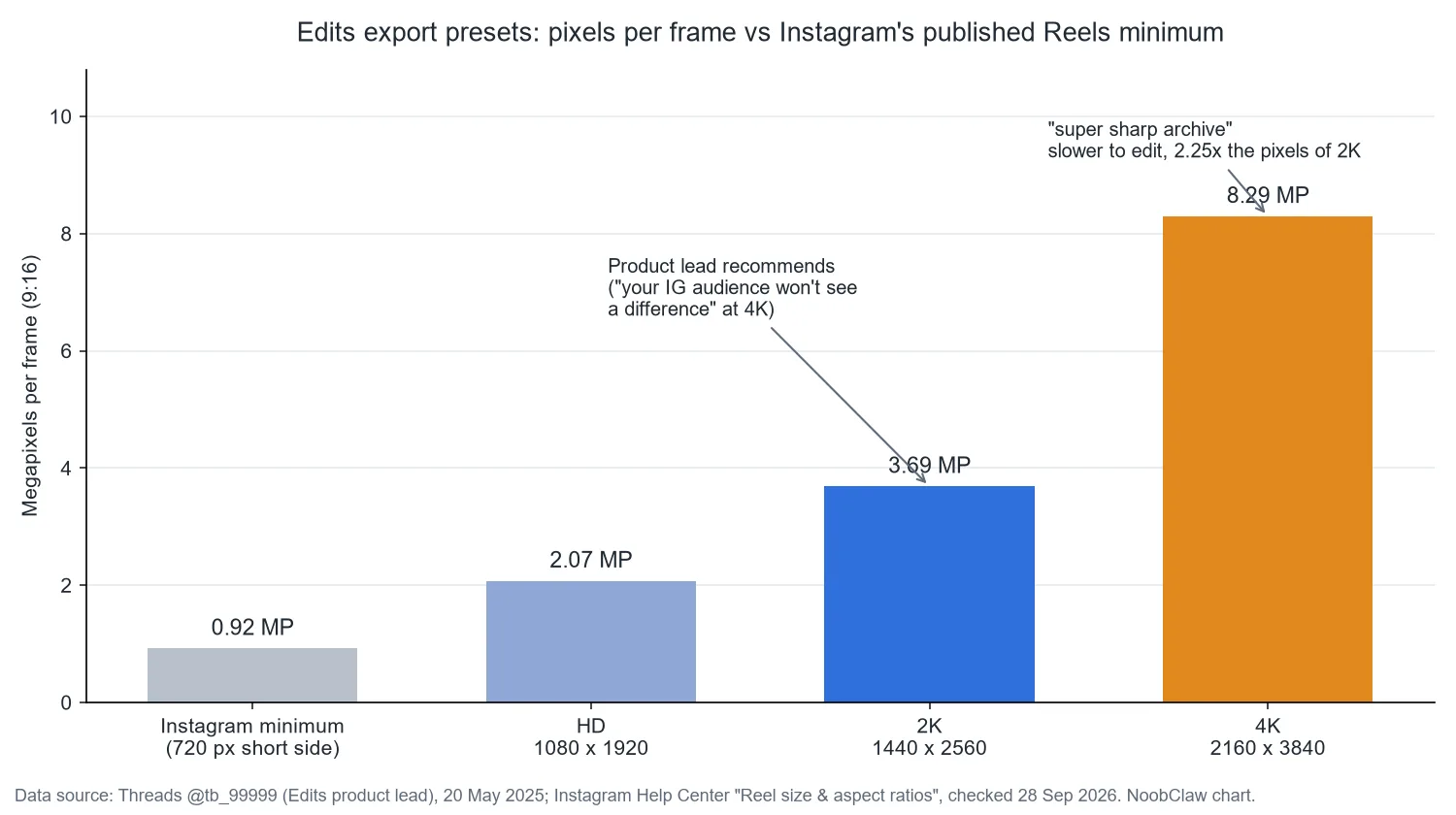
The arithmetic: a 720x1280 frame is 0.92 megapixels. HD (1080x1920) is 2.07, 2K (1440x2560) is 3.69, 4K (2160x3840) is 8.29. 4K carries 2.25 times the pixels of 2K into a pipeline Instagram does not publish targets for. Nobody outside Meta can say what a 4K upload is reduced to; Bender's claim is that the difference does not survive delivery to a phone screen.
So which to choose: 2K by default, HD when the device or project is heavy (you lose little that viewers see), 4K only for a master you will crop to landscape or re-edit later. Exporting a 4K master and a separate 2K posting copy costs one extra render and removes the dilemma.
We also noticed a small tension. Instagram's "minimum frame rate of 30 FPS" sits above the 24 fps option Edits offers and Bender endorses as a look. The spec page says "should", and the app offers 24 for reels, so our reading is that 30 is the safe default and 24 a deliberate style choice.
Edits app not exporting or resolution limited to HD: what to check
We searched the Edits section of the Help Center on 23 Oct 2026 and found no troubleshooting article for failed exports or a missing 2K/4K option; the section covers getting started, creating and managing videos, and Edits Plus. So the table separates what Meta says from what we infer.
| Symptom | What official sources say | What to try |
|---|---|---|
| Export stops or says something went wrong | No official cause published. Projects stay in Edits after export. | Drop one step (4K to 2K, 2K to HD) and retry; free up storage, since Download saves a full file to the camera roll; remove the last layer you added and export again (our read). |
| Only HD is offered, 2K/4K missing | Help Center lists HD, 2K and 4K as options. The Edits Plus benefits list cloud storage and AI usage, not resolution. | Update Edits; check the resolution control in the project as well as on the camera; if your phone's own camera cannot record 4K, expect the option to be limited (our read, Meta publishes no device list). |
| Reel looks soft after posting | Instagram has an "Upload at highest quality" switch you turn on yourself, and notes higher-quality uploads "may take longer". | Instagram app: Profile, Menu, Your app and media, Media quality, Upload at highest quality. |
| File saved but Share to Instagram fails | Share to Instagram opens the Instagram app to post the reel. | Update Instagram and Edits; or upload the downloaded file by hand (one extra encode, links lose interactivity). |
| Changes not showing in the posted reel | "Those changes will not apply to the video that's already been exported. You will need to export the video again." | Re-export; for a saved Instagram draft, export to Instagram again to update it. |
| Edits won't install on iPad or a PC | The App Store listing reads "Only for iPhone" and "Requires iOS 16.3 or later". A desktop version was announced as "coming soon" in June 2026 (TechCrunch). | Use an iPhone or an Android phone (Google Play listing). |
On 23 Oct 2026 the App Store showed version 452.1 and Google Play an update dated Oct 20, 2026; update both apps before changing anything else.
If nothing works, separate the two failures. If the file reaches your camera roll, the export worked and only the hand-off to Instagram failed. If no file appears, the render failed, and the lower preset is the quickest test.
Share to Instagram, save as draft, or download?
Edits now has three exits, per the Help Center:
- Share to Instagram opens Instagram to post as a reel. The reel "will also include an icon indicating that it was created with Edits." Required if you used the Links tool: Instagram's editing page says "Export directly from Edits to Instagram in order to make the overlays interactive."
- Save draft (On "Choose where to share", tap Instagram, then Save draft) keeps your caption, tags and audience choices on Instagram, linked to the Edits project.
- Download saves to the camera roll "and post to anywhere, watermark free," per the recording page. Use it for other platforms.
Instagram's About Edits page adds that you can share to Facebook as a reel too. Meta said in June 2026, as reported by TechCrunch, that content made with Edits sees "a 10% higher save rate and 2% higher reshare rate compared to content not made on Edits". That compares Edits content with non-Edits content; it is Meta's unaudited figure and says nothing about any export setting.
What changes when one edit has to land on several accounts?
Export settings are a one-account question. If each account has its own audience and niche, each usually needs its own edit. Instagram's Original Content Guidelines list "Content copied exactly from another account" as unoriginal and say unoriginal content "may be ineligible to appear in recommendations"; they don't spell out how that applies to accounts you own, so check them before posting one reel in several places. Our summary is in Instagram's original content rules, and the routes for one reel are compared in same reel on multiple accounts. Crossposting the same idea to TikTok works on the same terms, covered in same content on TikTok and Instagram. For the wider setup, see managing multiple social media accounts for free.
That per-account variation is the part that does not scale by hand. NoobClaw is a desktop app (Windows and macOS) where each account has its own profile, niche and persona for AI content, and publishing runs through your own logged-in browser sessions. In NoobClaw's published run of 10 Oct 2026, its script-to-video workflow produced a 9:16, 1080x1920, 30 fps MP4, which matches the HD row above. As with any third-party tool, check Instagram's current rules and review each post before it goes out.
FAQ
Does exporting in 4K improve Reels quality?
Not according to Tom Bender, who launched Edits and says your Instagram audience "won't see a difference" and that 4K "will be slower to edit." Instagram's published minimum is 720 pixels. Export 2K for the post and keep 4K as a master.
Should I export SDR or HDR from Edits?
Bender calls it a creative choice and, asked in a reply which color setting gives full quality, answered "HDR". Instagram converts HDR to SDR for viewers who turn HDR off. Our read: HDR for footage shot in HDR, SDR for projects mixing screen recordings or graphics.
What frame rate should I export from Edits?
30 fps, unless you want a look: 24 for a filmic feel, 60 for fast motion. 30 also matches the "minimum frame rate of 30 FPS" on Instagram's reel spec page.
Is there an Edits app for PC or Mac?
Not as of 23 Oct 2026 in the stores we checked: the App Store listing says "Only for iPhone", and Android phones use the Google Play version. Meta called a desktop version "coming soon" in June 2026, as reported by TechCrunch. If you edit at a computer today, our Edits vs CapCut comparison covers when CapCut is the better fit.
Sources
- Reels with higher visual quality tend to get more engagement. A few tips on quality for creators making reels with Edits (thread and replies) — Tom Bender (profile: "Prev. launched Threads and Edits apps"), Threads — May 2025, re-read 23 Oct 2026 — threads.com/@tb_99999/post/DJ4cVJ4RJ1E
- Download and share your video from Edits — Instagram Help Center — read 23 Oct 2026 — help.instagram.com/553588510887194
- Record a video with Edits — Instagram Help Center — read 23 Oct 2026 — help.instagram.com/596380656307917
- Edit your video on Edits — Instagram Help Center — read 23 Oct 2026 — help.instagram.com/583491847610362
- About Edits — Instagram Help Center — read 23 Oct 2026 — help.instagram.com/1345978640113441
- About Edits Plus — Instagram Help Center — read 23 Oct 2026 — help.instagram.com/948559780875922
- Reels Resolution and Size, in Reel size & aspect ratios on Instagram — Instagram Help Center — read 23 Oct 2026 — help.instagram.com/1038071743007909
- Edits: Video Editor — Apple App Store (US) — version 452.1, read 23 Oct 2026 — apps.apple.com
- Edits: Video Editor — Google Play — updated Oct 20, 2026, read 23 Oct 2026 — play.google.com
- Original Content Guidelines — Instagram for Creators — read 23 Oct 2026 — creators.instagram.com/original-content-guidelines
- Meta's Edits app is getting an AI assistant and a desktop version — TechCrunch — June 11, 2026 — techcrunch.com